
Picture this. It's Friday afternoon, and you push a tiny change to your online bookstore. Everything looks fine on your laptop. By Monday, customers are emailing you because the checkout button does nothing.
Most teams have lived through a day like that. Automated browser tests exist to prevent it. They open your site, click around, and check the results like a real shopper would, but much faster and without getting bored. That's where Playwright automation helps.
In this guide, you'll see what Playwright can test through ten simple examples. If you want a Playwright tutorial that starts from zero, you're in the right place. You'll set up the tool, write your first test, and learn a few habits that save beginners a lot of grief.
What Is Playwright? A Quick Introduction
Playwright is a free, open-source tool from Microsoft. It controls real browsers through code. Your script opens a page, types into forms, clicks buttons, and checks what appears on screen.
It supports Chromium (the engine behind Chrome and Edge), Firefox, and WebKit (the engine behind Safari). You can write tests in TypeScript, JavaScript, Python, Java, or .NET. Most newcomers start with TypeScript or JavaScript, because most docs and community examples use them.
Why Playwright Is Easy for Beginners
Many tools can click a button. Playwright stands out because it removes the most annoying parts of the job:
- It waits for you: Before it clicks, Playwright checks that the element is visible and ready. That removes most of the pauses that make tests flaky.
- Locators read like English: A line such as getByRole('button', { name: 'Pay now' }) stays easy to understand months later.
- The test runner is built in: Assertions, reports, retries, and parallel runs all come included.
- Codegen writes a first draft: Run npx playwright codegen, click through your site, and it records your steps as code.
- Failures are easy to investigate: The Trace Viewer replays each step with screenshots and network calls.
How to Set Up Playwright in 5 Simple Steps
Set aside about ten minutes. That's all it takes.
- Install Node.js. The current LTS version is a safe pick.
- Open an empty folder in your terminal and run npm init playwright@latest.
- When the installer asks, choose TypeScript and accept the other defaults. It will also download the browsers.
- Run the sample tests with npx playwright test. You should see them pass.
- Open the report with npx playwright show-report to see the results in your browser.
If the installer offers a GitHub Actions file, say yes. It will come in handy when you want your tests to run automatically.
Write Your First Playwright Test (Step by Step)
Let's test the search box on our bookstore:
import { test, expect } from '@playwright/test';

test('customer can search for a book', async ({ page }) => {
  await page.goto('https://example.com/bookstore');
  await page.getByPlaceholder('Search books').fill('Wings of Fire');
  await page.getByRole('button', { name: 'Search' }).click();
  await expect(page.getByText('Results for Wings of Fire')).toBeVisible();
});
The test opens a fresh browser page, goes to the store, types a book title, and clicks Search. The last line checks that the results message appears. If it doesn't appear in time, the test fails.
That's the whole pattern: go somewhere, do something, check the result. Every example below is a variation on it.
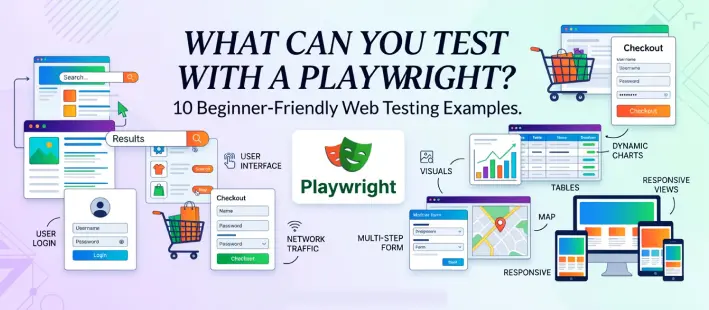
10 Things You Can Test with Playwright
1. Page Titles and Content
Start simple. Does the home page have the right title? Is the main banner showing? A single line like await expect(page). toHaveTitle(/Bookstore/) answers the first question. Quick checks like these make excellent smoke tests after every release.
2. Navigation and Links
Click the "Fiction" menu item. Then confirm that the URL changed and the right heading appears. Broken links and wrong redirects are boring bugs, but customers notice them fast.
3. Forms and Validation
Forms are where bugs love to hide. Submit the checkout address form with nothing filled in, and check for error messages. Enter a phone number with letters and see what happens. Finally, fill in everything correctly and confirm that the order goes through.
4. Login and Logout Flows
Test a valid entry for login; a wrong password can cause a logout. Playwright can also save a logged-in session and reuse it. Your other tests then skip the login screen. In a large test suite, that saves a surprising amount of time.
5. Buttons, Dropdowns, and Checkboxes
On a product list, you might pick "Price: low to high" from a dropdown and tick an "In stock only" checkbox. The playwright handles both. It also handles hovering, alerts, iframes, and new browser tabs.
6. File Uploads and Downloads
Let a user upload a profile photo with setInputFiles. Then download an invoice and check the file name. Doing this by hand gets old quickly, but a script repeats it perfectly every time.
7. API Responses
Playwright isn't only about clicking. Its request feature from the users can call your API directly, such as /api/books, and check the status code and data. You can also fake a server error. Then you can see whether your page shows a friendly message instead of a blank screen.
8. Visual Appearance
Take a screenshot of a product card and compare it with an approved copy using toHaveScreenshot(). If a button shifts or a color changes by accident, the test shows you exactly what moved. Keep one baseline image for each browser and operating system, because rendering varies slightly.
9. Mobile and Responsive Layouts
Most shoppers use phones. Playwright ships with device profiles, such as a Pixel or an iPhone, so you can run the same test on a small screen. Check that the menu folds into a hamburger icon and the buttons are easy to tap. You don't need a real phone.
10. Cross-Browser Behavior
List Chromium, Firefox, and WebKit in your config file, then run one test on all three pages that can look perfect in Chrome but break in Safari—a classic surprise. WebKit isn't identical to Safari, but it's close enough to catch most of these problems early.
Playwright Testing Best Practices for Beginners
A few habits matter more than any clever trick:
- Test what users actually do: Check actions and results, not internal code
- Prefer role and label locators: They survive redesigns far better than long CSS paths
- Keep every test independent: One test should never rely on another having run first.
- Let auto-waiting do its job: Fixed delays make tests slow and still unreliable.
- Open the Trace Viewer when something fails: It usually shows the problem within a minute.
- Run your tests in CI: A tool like GitHub Actions can check every pull request for you.
Common Playwright Mistakes and How to Avoid Them
Everyone stumbles in the first few weeks. Here are the slips I see most often and how to dodge them.
Mistake 1: Putting Everything in One Test
Say a single test logs in, searches, fills the cart, pays, and checks the confirmation email. When it fails, you have a dozen suspects and no clue which one is guilty. Small tests, each with one job, point straight at the problem.
Mistake 2: Ignoring Flaky Tests
A test that fails on Tuesday and passes on Wednesday is telling you something. Find out why instead of hitting rerun until it goes green. If you don't, your team will stop trusting every result.
Mistake 3: Doing All Setup Through the UI
You don't need to click through a sign-up form every time you need a user. Create that user through the API, then use the browser only for the part a real customer would see.
Playwright Limitations: What It Can't Do
It's a great tool, but it has limits. Playwright works with web apps in a browser, so native mobile apps are outside its reach. It also isn't made for load testing. If you need to simulate thousands of visitors at once, tools like K6 or JMeter fit better.
It won't replace unit tests, either. Unit tests are quick and catch logic mistakes early. Browser tests confirm that the whole experience holds together. Use both, and treat browser tests as your last safety net, not your only one.
Start Testing with Playwright Today
Playwright can handle far more than most beginners expect. Pages, forms, logins, uploads, APIs, phone-sized layouts, and several browsers are all within reach. Start with one small test, add a new example each week, and you'll be surprised how quickly your confidence builds.
If you'd like structure, mentor support, and real project work, a TypeScript with Playwright course in Chennai can speed things up. At AiiTE Academy, learners practice with hands-on labs, build real-world test projects, and get guidance from mentors who have worked in the field. Whichever program you choose, look for plenty of practical lab time, and write your first test this week.
Frequently Asked Questions
Yes. It's open source, so there's no license fee.
No. The basics of JavaScript are enough to start the type script process. You can pick up TypeScript features one by one for your test growth.
Both automate browsers. Selenium has a large support for the external languages. Playwright is newer and comes with a test runner and auto-waiting, which many beginners find easier to set up. The better choice depends on your team and your project.
Start with five to ten. Cover your most important paths, like login and checkout, and add more once those feel solid.